Intro To Azure Storage in C#
Azure Storage is an essential service offered by Microsoft Azure, and when combined with .NET technologies, it becomes a powerful tool for storing and retrieving files in the cloud. In his in-depth tutorial “Intro to Azure Storage in C#,” Tim Corey walks viewers through the exact steps of configuring an Azure Storage Account, setting up Azure Blob Storage, and integrating it into a C# ASP.NET Core MVC project.
In this article, we will follow Tim’s video closely to explore every stage of the process discussing key concepts and terminologies used in real-world Azure development.
Azure Storage Pricing and Planning
Tim begins by explaining the financial efficiency of using Azure Storage in a C# application. Whether you’re using a blob container to store text files, images, or binary data, the cost remains minimal. He introduces the Azure Pricing Calculator to estimate charges based on selected features like performance tiers, redundancy settings, and data operations.
Tim chooses Block Blob Storage under General-purpose v2 in the Azure portal and configures the hot access tier for frequently accessed files. He ensures that the storage account is using locally redundant storage (LRS) to minimize costs while still maintaining safety.
“For a demo app storing 1 GB of data and a few thousand operations, the cost comes down to 13 cents per month,” Tim explains.
Creating the Azure Storage Account
In the Azure portal, Tim demonstrates how to create a new resource group and a corresponding Azure Storage Account. Naming conventions are strict—storage account names must be unique, lowercase, and contain no dashes.
While setting up, he disables Geo-redundant storage to save on cost, a critical tip for developers working on prototypes or local environments. He also enables anonymous access at the container level, but only for demonstration purposes—warning that real production environments require secured access.
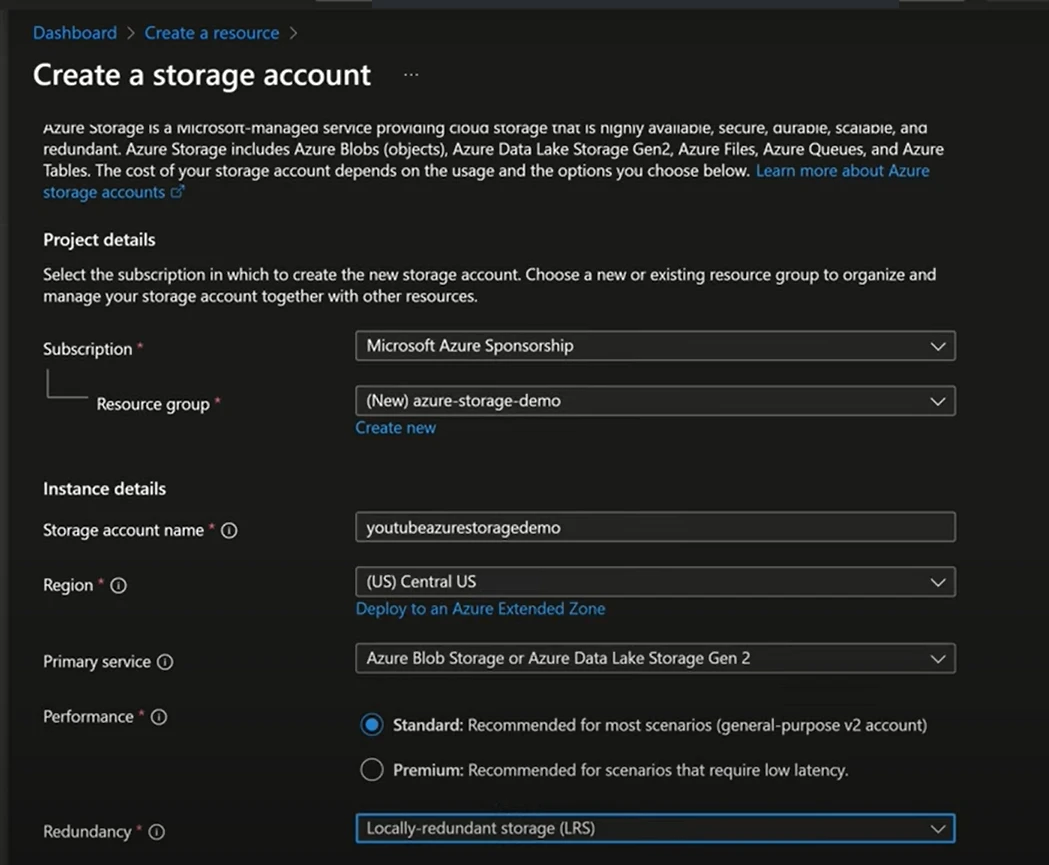
Tim also covers access keys, the connection string, and the storage account name—all essential when your C# project connects to Azure resources.
Understanding Azure Blob Storage
Tim highlights how a blob container is used to organize data in your Azure storage account. He avoids creating a new container manually via the portal and instead plans to generate it in code using the Azure SDK for .NET.
He explains that secure access keys and the connection string—viewable under the account’s security settings—will be used in the application to authenticate with the storage client library.
Starting the ASP.NET Core Project
Tim creates a .NET 9 MVC web application using Visual Studio. Although any UI type like Razor Pages or Blazor Server could be used, he selects MVC for demonstration.
At 19:35, in secrets.json, he stores sensitive credentials securely:
connection string
storage account key
container name
- storage account name
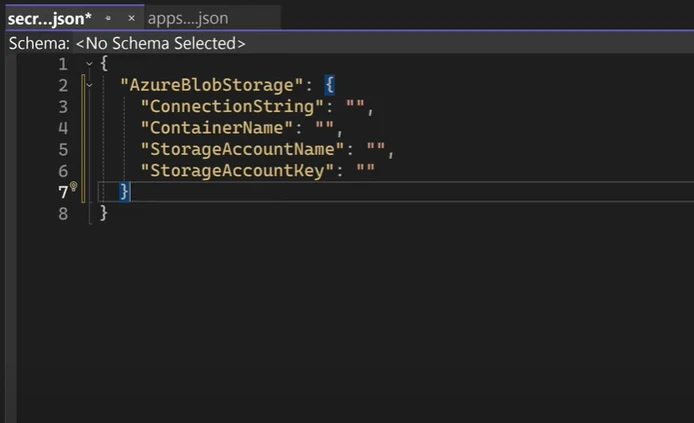
Tim explains that appsettings.json should not contain secrets, as it gets committed to source code repositories. Instead, secrets should be stored locally using User Secrets, especially during development.
Installing Required NuGet Packages
To interact with Azure Blob Storage, Tim installs the Azure.Storage.Blobs NuGet package. He appreciates how Microsoft has modularized features using the Azure SDK, enabling smaller, more maintainable applications.
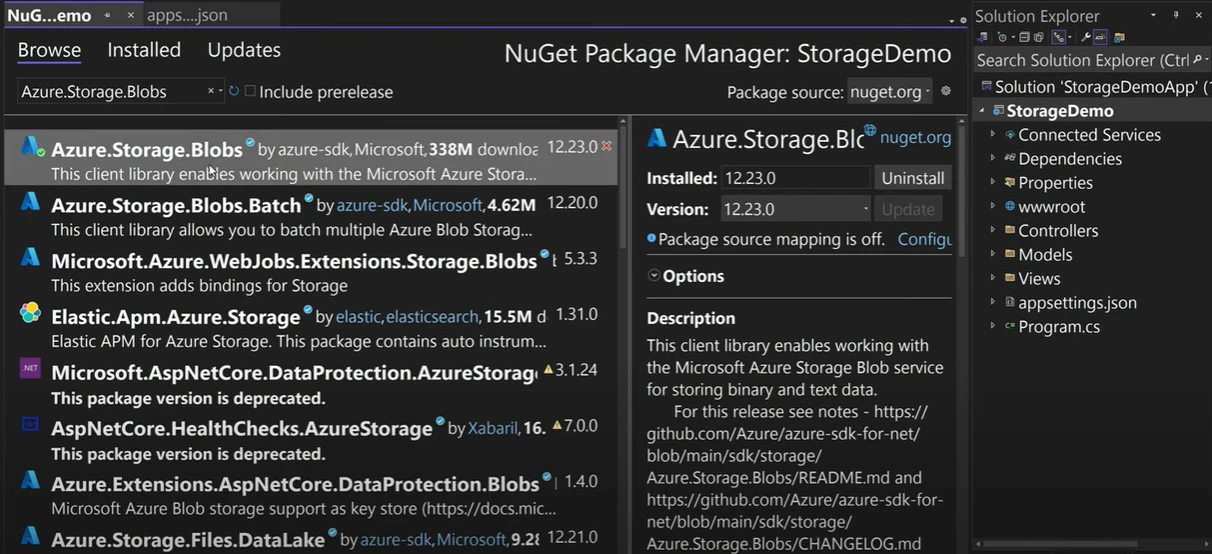
“Instead of bundling everything into the framework, now you get exactly what you need—like the Azure Blob client library—via NuGet,” Tim points out.
Configuring Options Pattern for Azure Storage
Next, Tim creates a POCO class (BlobStorageOptions) to match the keys in his config. He uses the options pattern to bind configuration into strongly typed objects, enabling centralized and testable configuration.
This setup makes it easy for the .NET app to use the Azure configuration consistently across environments.
Implementing Blob Storage Service Logic
Tim adds a new folder called DataAccess and implements a class named BlobStorage.cs. Inside, he injects the configuration using IOptions
He builds two primary async methods:
Upload File Logic
The UploadFileAsync method:
Accepts an IFormFile from the MVC front end.
Creates a BlobContainerClient from the Azure Storage SDK using the connection string and container name.
Checks for an existing container or creates a new container if it doesn't exist.
Sets access policy to None, ensuring the container isn’t publicly accessible.
- Uses a BlobClient object to upload the file from a stream.
Tim uses a using statement and an await call to handle the file stream securely, preventing memory leaks.
Download File Logic
In DownloadFileAsync, Tim:
Accepts a string filename or full blob URI.
Builds a new BlobClient using the URI and secure credentials.
Downloads the file using DownloadStreamingAsync.
- Wraps the stream in a FileContentResult to enable downloads from the browser.
This ensures files remain secure and are only accessible through the application—not directly through URL guessing.
Registering Blob Storage with Dependency Injection
Tim defines an interface (IBlobStorage) for his class and registers it as a Singleton in the .NET DI container. Since the class is stateless and uses only configuration values, Singleton is optimal.
Integrating with the MVC App
The Home Controller is modified to use IBlobStorage. It contains:
An UploadFile POST method that validates input and calls UploadFileAsync.
- A GetFile POST method that checks the URL and then calls DownloadFileAsync.
Each method interacts with the storage client to securely handle blob files, whether uploading or downloading.
Razor View UI for File Operations
In Index.cshtml, Tim sets up:
A form to upload files using input type="file" and Bootstrap styling.
A second form to download a file using its URI.
Error message handling for edge cases like missing files or invalid URIs.
- A display section that shows the generated blob URI (https) after a successful upload.
Tim also handles errors using a List
Testing and Verifying File Security
Tim uploads a text file and tries accessing the URI directly in the browser—it fails, as expected, due to the None access policy.
After temporarily changing the access level in the Azure portal, the file becomes downloadable via direct link. But he promptly reverts it to Private, emphasizing how Azure provides fine-grained control over security.
Tim’s Final Recommendations
Tim concludes by reminding developers that Microsoft Azure offers a lot of value even with minimal investment. With tools like:
NuGet packages
Azure SDK
Visual Studio
Azure Portal
- Secure connection strings and keys
you can quickly build a production-ready storage solution using C#. Whether you’re working on a large-scale system or a small test project, Azure Blob Storage is a scalable and cost-effective choice.
“You pay for what you use in the cloud—so ask for only what you need,” Tim emphasizes.
Summary
From creating a storage account and configuring blob containers, to securely handling uploads and downloads in an MVC application, Tim Corey provides detailed instructions that cover the entire lifecycle of using Azure Storage with .NET.
With this guide and Tim’s video, you can start using Azure Blob Storage with confidence—while maintaining control, minimizing cost, and adhering to best practices in cloud development.
Do check out his complete video for further clarity and his YouTube Channel for more insightful content on Azure storage (C#).